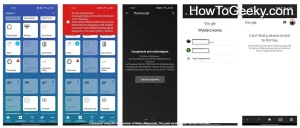
Introduction
In the rapidly evolving landscape of smart home technology, devices like Google Nest have become indispensable for managing comfort, security, and energy efficiency. The Nest app serves as the central command center, offering seamless control over your thermostat, cameras, doorbell, and other connected devices. However, nothing is more frustrating than when your Nest app is not working or displaying an “offline” status, leaving you disconnected from your smart home. Whether it’s a critical security alert from your Nest Cam or an urgent need to adjust your thermostat, an unresponsive app can be a significant inconvenience.
Even as we navigate 2026, where smart home integration is more sophisticated than ever, underlying technical glitches, network issues, or software bugs can still disrupt the user experience. This comprehensive guide is designed to empower you with the knowledge and actionable steps to diagnose and resolve the most common Nest app problems. We’ll walk you through seven easy, professional fixes that can help you get your Nest devices back online and fully functional, ensuring your smart home ecosystem operates smoothly and reliably.
Comprehensive Discussion: Getting Your Nest App Back Online
Experiencing a Nest app offline message or complete unresponsiveness can stem from a variety of sources, ranging from simple network hiccups to more complex software conflicts. Before you panic, systematically work through these troubleshooting steps. Each fix addresses a common pain point and offers clear, actionable instructions to help you regain control of your Nest devices.
1. Check Your Internet Connection and Wi-Fi Stability
The vast majority of Nest app problems are rooted in connectivity issues. Nest devices rely heavily on a stable and robust Wi-Fi network to communicate with the app and the cloud. If your internet is down or your Wi-Fi signal is weak, your Nest app will inevitably show devices as offline.
- Verify Your Internet Service:First, check if your internet service is operational. Try browsing a website on your phone or computer, or stream a video. If other devices also cannot connect, the problem lies with your Internet Service Provider (ISP) or your router.
- Restart Your Router and Modem:A simple power cycle can resolve many network issues. Unplug both your Wi-Fi router and your modem from their power outlets. Wait for about 30 seconds, then plug the modem back in. Once the modem is fully online (usually indicated by stable lights), plug your router back in and wait for it to fully boot up.
- Check Wi-Fi Signal Strength:Ensure that your Nest devices are within a reasonable range of your Wi-Fi router. Walls, floors, and other electronic devices can interfere with the signal. Consider using a Wi-Fi analyzer app on your smartphone to check signal strength at the location of your Nest devices, especially for cameras and doorbells.
2. Restart the Nest App and Your Mobile Device
Often, an unresponsive app is simply a temporary software glitch. Just like restarting a computer can solve many issues, doing the same for your app and phone can refresh their state and resolve minor bugs.
- Force Close the Nest App:
- On iOS: Swipe up from the bottom of the screen (or double-press the Home button on older models) to bring up the app switcher. Find the Nest app and swipe it upwards to close it.
- On Android: Open your recent apps list (usually a square icon or swipe up and hold). Find the Nest app and swipe it away to close it. Alternatively, go to Settings > Apps > Nest > Force Stop.
- Restart Your Mobile Device:After force-closing the app, power off your smartphone or tablet completely. Wait for a minute, then power it back on. Once your device has fully restarted, relaunch the Nest app.
- Restart Specific Nest Devices (If Applicable):For persistent issues with a single device, a quick restart can help. For Nest Thermostats, you can usually pull it off the base and reattach it. For Nest Cams or Doorbells, unplug them from their power source for a few seconds and then plug them back in.
3. Verify Nest Account Login and App Permissions
Sometimes, the problem isn’t with the device itself but with the connection between the app and your Nest account, or incorrect app settings on your phone.
- Log Out and Log Back In:Inside the Nest app, navigate to your account settings (often a gear icon or profile picture). Look for an option to “Sign Out” or “Log Out.” After signing out, close the app, reopen it, and attempt to log back in using your credentials. This refreshes the session and can resolve authentication errors.
- Reset Your Nest Account Password:If you suspect forgotten credentials or a compromised account, try resetting your password via the app’s login screen or the official Nest website. Ensure you’re using the correct Google account if your Nest account has been migrated.
- Check App Permissions:Ensure the Nest app has the necessary permissions on your mobile device. Go to your phone’s Settings > Apps (or Applications) > Nest. Verify that permissions like Location, Notifications, and Local Network Access are enabled. Restricting these can prevent the app from functioning correctly, especially for features like home/away assist.
4. Update the Nest App and Device Firmware
Outdated software is a common culprit for bugs and compatibility issues. Both your Nest app and the firmware on your physical Nest devices need to be kept up-to-date for optimal performance and security.
- Update the Nest App:
- On iOS: Open the App Store, tap your profile icon, and scroll down to see pending updates. Update the Nest app if available.
- On Android: Open the Google Play Store, tap your profile icon, then “Manage apps & device.” Check for available updates for the Nest app.
Always ensure you are running the latest version of the Nest app, as updates often include bug fixes and performance improvements.
- Check Nest Device Firmware:Nest devices typically update their firmware automatically. However, if a device has been offline for an extended period, it might be running outdated software. You can manually check for firmware updates through the Nest app:
- Open the Nest app.
- Select the device experiencing issues.
- Go to its Settings (gear icon).
- Look for “Technical Info” or “Software Version” and check for an option to update or verify update status. (Note: most Nest devices update automatically when connected to Wi-Fi).
5. Troubleshoot Network Interference and Advanced Wi-Fi Settings
Sometimes the issue isn’t a lack of connectivity, but rather interference or specific router settings that are preventing proper communication.
- Minimize Wi-Fi Interference:Other electronic devices (microwaves, cordless phones, even neighbors’ Wi-Fi) can interfere with your Wi-Fi signal. Try changing your router’s Wi-Fi channel to a less congested one (consult your router’s manual or ISP for instructions). Keep Nest devices away from large metal objects or other electronics that could block signals.
- Review Router Settings:Log in to your router’s administration page (usually via a web browser). Check for settings that might be blocking Nest devices:
- Firewall Settings: Ensure your firewall isn’t overly restrictive.
- Port Forwarding: While rarely necessary, ensure no critical ports for Nest are being blocked.
- MAC Address Filtering: If enabled, ensure your Nest devices’ MAC addresses are whitelisted.
- Guest Networks: Nest devices should ideally be connected to your main home Wi-Fi network, not a guest network, as guest networks often have stricter isolation settings.
- 2.4GHz vs. 5GHz Wi-Fi:Many older Nest devices (e.g., first-gen Nest Thermostat, some Nest Protect models) only support 2.4GHz Wi-Fi. Ensure your router’s 2.4GHz band is enabled and your Nest devices are connected to it, especially if your router broadcasts both 2.4GHz and 5GHz networks with the same name.
6. Reset Your Nest Device (Soft Reset First)
When software glitches within the Nest device itself become stubborn, a reset can clear temporary data and restore functionality. Always attempt a soft reset before considering a factory reset.
- Perform a Soft Reset:This typically means restarting the device without erasing its data. The method varies by device:
- Nest Thermostat: Go to Settings > Reset > Restart.
- Nest Cam/Doorbell: Unplug the power cable for 10-15 seconds, then plug it back in.
- Nest Protect: Hold down the Nest button until it chimes and lights up blue, then release.
- Consider a Factory Reset (as a Last Resort):A factory reset will erase all settings, data, and your device’s connection to your Nest account. You will need to set up the device again from scratch. This is a drastic step and should only be performed if all other troubleshooting fails.
Warning: A factory reset will require you to re-add the device to your account and reconfigure all its settings. Be prepared to go through the initial setup process again.
To factory reset, consult the specific support page for your Nest device model, as the procedure varies greatly.
7. Reinstall the Nest App
If the Nest app itself has become corrupted with bad data or a problematic cache, a fresh installation can often resolve deep-seated software issues.
- Uninstall the Nest App:
- On iOS: Press and hold the Nest app icon until it wiggles, then tap the “X” or “Remove App” option. Confirm deletion.
- On Android: Press and hold the Nest app icon, then drag it to “Uninstall” or tap “App info” and then “Uninstall.”
- Clear App Cache (Android Specific, Optional):Before uninstalling on Android, you can try clearing the app’s cache and data first (Settings > Apps > Nest > Storage > Clear Cache & Clear Data). Then proceed with uninstalling.
- Restart Your Mobile Device:After uninstalling, restart your phone or tablet to clear any residual temporary files.
- Reinstall from the Official Store:Go to the Apple App Store (iOS) or Google Play Store (Android), search for “Nest” (or “Google Home” if your devices have been migrated), and download the official app. Log back in with your Nest/Google credentials.
Understanding Broader Factors Affecting Nest App Performance
Beyond these specific fixes, it’s beneficial to understand why Nest app not working issues occur:
- Server Outages: Occasionally, the problem isn’t on your end but with Google’s Nest servers. Check social media (like Twitter) or status websites (e.g., Google Nest Status Page) for reported outages. If there’s a widespread issue, patience is often the only fix.
- Device Compatibility: Ensure your mobile device’s operating system (iOS or Android) is still supported by the latest Nest app version. Very old phones might struggle with newer app functionalities.
- Google Home App Migration: Remember that many newer Nest devices and some migrated older ones are primarily managed through the Google Home app. If you’re using a mix of older and newer Nest devices, you might need both apps or have migrated completely. Confirm which app is the primary interface for your devices.
FAQ: Common Questions About Nest App Issues
Q1: My Nest app says my device is offline, but I can see it working physically. What should I do?
A1: This often indicates a communication breakdown between the device and your Wi-Fi network, or between your network and the Nest servers. Start by checking your internet connection (Fix 1), then restart both the Nest app and your specific Nest device (Fix 2). Also, ensure your Wi-Fi signal is strong where the Nest device is located (part of Fix 1 and 5).
Q2: How do I know if the Nest app issue is due to a server problem?
A2: If you’ve tried basic troubleshooting steps and multiple Nest devices are showing offline simultaneously, it’s worth checking Google’s official Nest status page or searching on social media platforms (like Twitter) for “Nest outage” reports. Widespread issues are usually reported quickly by other users and official channels.
Q3: My Nest app connects to some devices but not others. What could be the problem?
A3: This points to a device-specific issue or localized network problem. First, try restarting the individual Nest device that’s offline (Fix 2). Then, re-evaluate its Wi-Fi signal strength and potential interference at its specific location (Fix 5). Ensure its firmware is up to date (Fix 4).
Q4: Is it safe to perform a factory reset on my Nest device?
A4: A factory reset is generally safe but should be considered a last resort (Fix 6). It will erase all your custom settings and preferences, requiring you to set up the device as new. Only proceed if you’ve exhausted all other options and are prepared for the re-setup process. Always back up any critical settings if possible, although for most Nest devices, configuration is cloud-based and ties to your account.
Q5: Does using the Google Home app instead of the Nest app affect troubleshooting?
A5: Yes, it can. If your Nest devices have been migrated to the Google Home ecosystem, the Google Home app becomes the primary interface. Ensure you are using the correct app for your specific device setup. Troubleshooting steps like updating the app (Fix 4) and checking account logins (Fix 3) would then apply to the Google Home app instead of or in addition to the Nest app.
Q6: My Nest camera continually disconnects and reconnects. What’s the best fix?
A6: Intermittent disconnection typically signals a weak or unstable Wi-Fi signal. Focus on improving your Wi-Fi coverage at the camera’s location (Fix 1). This might involve repositioning your router, using a mesh Wi-Fi system, or eliminating sources of interference (Fix 5). Also, ensure the camera has a stable power supply and is not overheating.
Q7: I’m concerned about privacy and security if I have to reset or reinstall. What should I know?
A7: Reinstalling the app or resetting a device does not inherently compromise your privacy. When you log back in, your devices will reconnect securely to your Nest/Google account. Always download the app from official app stores. A factory reset wipes local data, which can actually be a security measure if you’re selling or giving away a device. Ensure your Nest/Google account uses a strong, unique password and two-factor authentication for maximum security.
Conclusion
Dealing with a Nest app not working or devices showing as offline can be a genuinely frustrating experience, especially when relying on your smart home for daily comfort and security in 2026. However, as this guide has demonstrated, most issues are resolvable with a systematic approach to troubleshooting. From basic network checks to app and device resets, the solutions are often within your reach.
By carefully following the seven professional fixes outlined – checking your internet, restarting components, verifying account details, updating software, addressing network interference, performing resets, and reinstalling the app – you can confidently diagnose and resolve common connectivity and app functionality problems. Remember, a resilient smart home is one where you’re prepared to tackle occasional technical hiccups. With these strategies in hand, you’ll be well-equipped to get your Nest ecosystem back online and operating smoothly, ensuring your smart home remains a seamless and integrated part of your life.